
Yoast SEO vs RankMath 2025: Which Plugin Wins?
When it comes to optimizing your WordPress website for search engines, two names always stand out — Yoast SEO and RankMath. Both are incredibly popular, powerful, and widely used. But in 2025, with new updates and AI-driven features, which plugin truly deserves the crown? Let’s dive deep into a detailed comparison of Yoast SEO vs RankMath 2025, covering everything from setup to features, pricing, and performance. Overview: Yoast SEO vs RankMath 2025 Both Yoast SEO and RankMath help you optimize your site content for better visibility on Google. They analyze your content, suggest improvements, and help you manage technical SEO tasks. But they differ in approach and functionality. In 2025, both plugins have evolved significantly, introducing AI writing tools, schema generators, and faster performance. Ease of Use and Setup When you first install a plugin, the onboarding experience matters. Verdict: RankMath wins for a smoother, faster, and more visually appealing setup process. Features Comparison Yoast SEO and RankMath Here’s a breakdown of what both plugins offer in 2025: Feature Yoast SEO RankMath Focus Keyword Optimization ✅ Yes ✅ Yes Multiple Keywords (Free) ❌ No ✅ Yes Schema Markup ✅ Basic ✅ Advanced & Automatic AI Content Analysis ✅ Limited ✅ Full AI Assistant Redirect Manager ✅ Paid ✅ Free Internal Linking Suggestions ✅ Paid ✅ Free Local SEO ✅ Paid ✅ Free Module WooCommerce SEO ✅ Paid ✅ Free Module Integration with Search Console ✅ Yes ✅ Yes 404 Monitor ❌ No ✅ Yes Verdict: RankMath offers more features for free, while Yoast locks several useful tools behind the premium version. Content Optimization and AI Tools Both plugins now use AI for smarter content optimization. If you’re a blogger or content marketer who writes regularly, RankMath’s AI assistant can save hours. Verdict: RankMath leads again with more advanced AI-driven features in 2025. Performance and Speed SEO plugins shouldn’t slow down your site. In 2025 tests, both plugins performed well, but RankMath proved to be slightly lighter and faster. It uses modular architecture, so you can disable features you don’t use — reducing load times. Yoast, while stable, includes some background processes that might affect large sites with heavy content. Verdict: RankMath is more performance-friendly and flexible. Pricing and Value for Money Pricing can make or break your choice, especially for small businesses. For agencies or freelancers, RankMath offers even better deals. Verdict: RankMath clearly gives more value for your money. Customer Support and Community Both plugins have large communities and documentation. RankMath’s team is very active and often pushes updates faster based on user feedback. Verdict: RankMath edges out Yoast in customer support and responsiveness. Which One Should You Choose in 2025? If you’re running a personal blog or prefer simplicity, Yoast SEO is still an excellent choice — stable, trustworthy, and straightforward. However, if you want more control, better AI tools, faster performance, and value for money, RankMath 2025 is the clear winner. Most users migrating from Yoast to RankMath report smoother workflows, better content scoring, and improved page speed. Final Verdict: 🏆 RankMath wins the Yoast SEO vs RankMath 2025 battle. Discover more Top 10 Free SEO Tools to Elevate Your Strategy Frequently Asked Questions Is RankMath better than Yoast in 2025? Yes, RankMath offers more free features, AI tools, and faster performance, making it better for most users in 2025. Does RankMath work well with WooCommerce? Absolutely. RankMath includes built-in WooCommerce SEO tools for free, unlike Yoast which charges extra. Will switching from Yoast to RankMath affect my SEO? No, RankMath includes an easy migration tool that transfers your Yoast settings safely without hurting rankings. Is Yoast still worth using in 2025? Yes, if you prefer simplicity and reliability, Yoast remains a great choice — especially for beginners. Can I use both Yoast and RankMath together? No, you should only use one SEO plugin at a time to avoid conflicts and duplicate meta tags. Does RankMath have AI writing features? Yes, RankMath’s Content AI helps generate SEO titles, meta descriptions, and FAQs directly inside WordPress. Conclusion In the showdown of Yoast SEO vs RankMath 2025, both plugins bring something valuable to the table.Yoast shines in reliability and simplicity, while RankMath dominates with innovation, features, and affordability. If you’re serious about taking your SEO strategy to the next level this year, RankMath 2025 is the smarter choice. It’s faster, smarter, and more future-ready for AI-powered SEO. For more information, you can visit the official RankMath website or Yoast SEO’s official page.
7 Powerful Reasons Why All in One WP Migration Is the Best Backup Plugin
If you’ve ever tried to move your WordPress website to a new host or restore it after a crash, you know how stressful it can be. Between database errors, missing files, and plugin conflicts, migration can quickly become a nightmare. That’s why having a dependable tool like All in One WP Migration is a total game-changer. This WordPress plugin makes it unbelievably simple to backup, restore, and migrate your entire site — even if you’re not a tech expert. With millions of active users and thousands of five-star reviews, it’s widely considered one of the most trusted and efficient backup tools in the WordPress community. In this article, we’ll explore 7 powerful reasons why All in One WP Migration is the best WordPress backup plugin, how it works, and why it deserves a permanent spot on your website. All in One WP Migration: An Overview All in One WP Migration is a plugin developed by ServMask, designed to make website migration and backups effortless. It allows users to export their entire site — including the database, media files, themes, and plugins — into a single file. Unlike other migration tools, it doesn’t require FTP access, cPanel credentials, or database management. You can simply install the plugin, export your website, and import it on your new server or domain. Key Features: Now let’s dive into the seven reasons that make this plugin stand out from the rest. Reason 1: Simple and User-Friendly Interface One of the biggest advantages of the All in One WP Migration plugin is its simplicity. Everyone can use it, from complete newbies to expert developers. There’s no need to mess with complex code, database configurations, or file permissions. The plugin’s drag-and-drop migration system makes it easy to export or import your website in just a few clicks. Everything is neatly organized in your WordPress dashboard, and the instructions are straightforward. Whether you’re transferring your site to a new domain, creating a staging version, or simply taking a backup, you can do it all without technical stress. For many users, this user-friendly design is what makes the plugin irreplaceable. Reason 2: Complete Website Backup and Restore A reliable backup system is crucial for every WordPress website. With All in One WP Migration, you can back up your entire site — including posts, pages, themes, plugins, and your WordPress database — instantly. Once your backup is ready, you can save it on your computer or send it to your preferred cloud storage service. If anything ever goes wrong — like a theme conflict, plugin error, or website crash — you can restore your site in seconds using the Import feature. This “one-click restore” functionality ensures you’ll never lose your data, no matter what happens. Reason 3: Seamless Website Migration Moving your WordPress website from one host to another is usually complicated. But with All in One WP Migration, it’s a breeze. Here’s how it works: That’s it! Your entire website — from design to content — will be restored exactly as it was before. The plugin also automatically handles tricky issues like URL changes, serialized data, and domain replacements, saving you hours of manual work. Plus, it helps avoid downtime, which means your visitors won’t even notice your website was moved. Reason 4: Cloud Storage Integration Keeping backups stored offsite is one of the best security practices. All in One WP Migration integrates seamlessly with multiple cloud storage platforms, including: You can schedule automatic backups directly to these platforms using the premium extension. This means even if your hosting account is hacked or your server crashes, your data stays safe in the cloud. This flexibility makes the plugin a solid long-term solution for both small blogs and large business websites. Reason 5: Regular Updates and High Compatibility The WordPress ecosystem is constantly evolving — with new versions, themes, and plugins being released every few weeks. That’s why plugin compatibility matters so much. The developers behind All in One WP Migration consistently update the plugin to ensure it stays compatible with the latest versions of WordPress. Regular maintenance also helps fix bugs, improve performance, and maintain a high level of security. This commitment to stability means you can use the plugin confidently on any WordPress setup without worrying about technical conflicts or version mismatches. Reason 6: Lightweight and Fast Performance Unlike some heavy backup tools that can slow down your site, All in One WP Migration is lightweight and optimized for speed. Its smart compression technology ensures your backup files are smaller in size without losing any data. This not only makes exporting and importing faster but also helps you store multiple backups efficiently. The plugin is also server-friendly and doesn’t overload your hosting resources during the backup process — a major plus for websites on shared hosting. When compared to other tools like UpdraftPlus or Duplicator, this plugin consistently performs faster in migration and restore tests. Reason 7: Security and Peace of Mind Website data is valuable — losing it can be devastating. The All in One WP Migration plugin ensures that your site’s data is safely encrypted during export and import processes. It allows you to password-protect your backups, so no unauthorized person can access them. Moreover, storing your backups in secure cloud platforms adds an extra layer of protection. Whether it’s an accidental deletion, malware attack, or server failure, this plugin gives you peace of mind knowing you can recover your site instantly. How to Use All in One WP Migration (Step-by-Step Guide) Here’s how easy it is to back up or migrate your WordPress site using this plugin: Step 1: Install and Activate Step 2: Export Your Site Step 3: Import Your Site And just like that, your website is fully restored or migrated. Pros and Cons of All in One WP Migration Pros Cons Super easy to use, even for beginners Free version has a 512MB upload limit Reliable one-click backup and restore Some advanced features require paid extensions Works with most hosting providers
W3 Total Cache Plugin: Speed Up Your WordPress Site
When it comes to improving website speed on WordPress, one plugin I always recommend is the W3 Total Cache plugin. It’s one of the most popular caching plugins out there, and for good reason. A fast-loading website not only gives a better experience to visitors but also helps in search engine rankings. Let me share what this plugin does, how it works, and how you can set it up to boost your site’s performance. What is W3 Total Cache Plugin? The W3 Total Cache plugin is a free WordPress caching plugin designed to improve website speed and overall performance. It works by storing (or “caching”) parts of your website so that when visitors open a page, it loads much faster. Instead of your site loading everything from scratch every time, the cached version is served instantly. This means less load on your server, faster load times for users, and improved SEO rankings. Why Should You Use W3 Total Cache? Here’s why I like the W3 Total Cache plugin and why you might find it useful too: Key Features of W3 Total Cache Plugin The plugin comes with many features that make it stand out: How to Install and Set Up W3 Total Cache Plugin Here’s a quick step-by-step guide you can follow: That’s it. Even with these basic settings, you’ll notice a big difference in your website speed. My Experience with W3 Total Cache Plugin I’ve personally used the W3 Total Cache plugin on several WordPress sites, and the results have been impressive. Page load speed usually improves by 30-50% after setup. Of course, every website is different, but this plugin is a great starting point for anyone struggling with slow WordPress performance. FAQs About W3 Total Cache Plugin 1. Is W3 Total Cache free to use? Yes, it’s free, but there’s also a premium version with advanced features. 2. Does W3 Total Cache work with all WordPress themes? Mostly yes, but in rare cases, you may need to tweak settings if your theme has heavy scripts. 3. Is it beginner-friendly? The settings may look advanced at first, but even the basic setup works well. 4. Can I use W3 Total Cache with other caching plugins? No, it’s best to use only one caching plugin at a time to avoid conflicts. 5. Does W3 Total Cache improve SEO? Indirectly yes, because Google prefers fast websites, and this plugin makes your site faster. Final Thoughts If you want a free and powerful way to improve your WordPress site speed, the W3 Total Cache plugin is worth trying. With just a simple setup, you’ll see faster load times, happier visitors, and better SEO performance. For anyone serious about growing their website, this plugin is a must-have.
5 Best Free SEO Plugins for WordPress to Boost Traffic in 2025
If you’re running a WordPress site, you probably already know how important SEO is. Without proper optimization, your content might never reach the people searching for it. The good news is, you don’t need to be an SEO expert to get results. Thanks to free SEO plugins for WordPress, you can optimize your site, improve your visibility, and attract more visitors with just a few clicks. In this post, I’ll share the 5 best free SEO plugins for WordPress that you can start using today. Yoast SEO Yoast SEO is one of the most popular and trusted plugins for WordPress. It’s been around for years and is often the first choice for beginners. With Yoast, you get easy-to-follow suggestions on improving your content for search engines. Some features include: Even the free version has plenty of tools that can help you rank better without spending a dime. All in One SEO (AIOSEO) Another powerful plugin is All in One SEO. As the name suggests, it’s a complete SEO toolkit. The setup wizard makes it easy for anyone to get started, even without technical knowledge. Key features include: This plugin is perfect if you want something simple but effective for boosting your website’s visibility. Rank Math Rank Math is gaining popularity really fast, and for good reason. It offers a lot of premium-like features for free. Many users love it because of its clean interface and step-by-step setup. Rank Math includes: If you’re looking for something modern and lightweight, Rank Math is definitely worth trying. SEOPress SEOPress might not be as famous as Yoast, but it’s just as powerful. The free version covers all the essentials you need to optimize your site. With SEOPress, you can: It’s also very lightweight, so it won’t slow down your site. That’s a big plus for SEO since site speed matters a lot for rankings. Slim SEO If you want something minimal and easy, Slim SEO is a great choice. Unlike other plugins, it comes with automatic settings, so you don’t need to configure much. It just works right out of the box. Features include: Slim SEO is best for beginners who want simple optimization without dealing with too many options. FAQs About the Best Free SEO Plugins for WordPress Which free SEO plugin is best for beginners? Yoast SEO is the best choice for beginners because it provides easy-to-follow suggestions and a clear interface. Is Rank Math better than Yoast? Rank Math offers more advanced features in the free version, while Yoast is easier to use for beginners. It depends on your experience level and needs. Do I need more than one SEO plugin on WordPress? No, it’s not advised to install more than one SEO plugin at once. Installing multiple SEO plugins can cause conflicts and harm your site’s performance. Can free SEO plugins really help my site rank? Yes, free SEO plugins are powerful enough to improve your on-page SEO, generate sitemaps, and optimize content for search engines. Which SEO plugin is the lightest for performance? Slim SEO and SEOPress are very lightweight and won’t slow down your website. Do I need paid SEO plugins for better results? Not necessarily. Many free plugins like Rank Math, Yoast, and AIOSEO offer enough tools to optimize your site effectively. Paid versions are helpful if you want advanced features. Final Thoughts There you go—these are the 5 best free SEO plugins for WordPress that can help you boost your website’s rankings without paying for expensive tools. Whether you’re a beginner or an advanced user, each plugin has unique strengths. Pick the one that fits your needs best, install it, and start optimizing your site today. Over time, these plugins can make a big difference in your traffic and growth. 👉 You can also check out WordPress’s official plugin directory here: WordPress SEO Plugins
How to Improve WordPress Site Speed
A slow website is frustrating not only for visitors but also for search engines. If your WordPress site takes forever to load, people will leave before even exploring your content. That means fewer conversions, less traffic, and a drop in rankings. The good news? You don’t need to be a tech genius to make your site faster. With the right tweaks, tools, and best practices, you can dramatically improve loading times. In this complete guide, I’ll walk you through how to improve WordPress site speed step by step. We’ll cover everything from choosing the right hosting to optimizing images and using caching plugins. By the end, your site will be running faster, smoother, and ready to impress both users and Google. Why WordPress Site Speed Matters Website speed goes beyond technology. It affects every part of your online presence: In short, improving your site speed is an investment that pays off in traffic, rankings, and revenue. Choose a Fast and Reliable Hosting Provider Your hosting service is the backbone of your website. No matter how much you optimize, if your server is slow, your site will still drag. Tips for Better Hosting A quality hosting provider can cut your loading times in half without much extra work on your end. Use a Lightweight WordPress Theme Themes play a big role in site performance. Some themes are bloated with unnecessary features, slowing down your site. What to Look for in a Theme A lean theme ensures your site runs smoothly without dragging extra baggage. Optimize Your Images Image files are usually the largest on a website. If they’re not optimized, they can slow your site dramatically. Image Optimization Tips Optimized images keep your site looking sharp while speeding up performance. Install a Caching Plugin Caching is one of the simplest ways to speed up your site. It stores a static version of your pages so visitors don’t have to reload everything from scratch each time. Best Caching Plugins for WordPress With caching enabled, your pages can load up to 3x faster. Use a Content Delivery Network (CDN) A CDN helps deliver your content faster by storing copies of your website across multiple servers worldwide. When someone visits your site, the CDN loads it from the nearest server. Popular CDNs If you have a global audience, a CDN is a must for faster performance. Minify CSS, JavaScript, and HTML Every piece of code on your site adds up. By minifying (removing unnecessary spaces, comments, and characters), you can reduce file sizes and boost speed. How to Minify Files This small step can make a noticeable difference in page load times. Limit Plugins and Clean Up Your Database Too many plugins slow down your WordPress site. Some may even conflict with each other and hurt performance. Plugin & Database Cleanup Tips Keeping your WordPress site lean ensures smooth performance. Enable GZIP Compression GZIP compression reduces the size of your website files before sending them to a browser. This helps pages load faster without affecting quality. Most caching plugins and hosts allow you to enable GZIP with just one click. You can check if GZIP is working using free online tools like Check GZIP Compression. Keep WordPress, Themes, and Plugins Updated Outdated software not only poses security risks but also slows down your site. Developers release updates to improve performance and fix bugs. Always make sure: If you don’t need a plugin anymore, delete it instead of leaving it inactive. Comparison of Best Tools to Improve WordPress Site Speed To make things easier, here’s a quick comparison of popular tools and services you can use to boost your WordPress speed. Category Tool/Service Best For Approximate Pricing Pros Cons Hosting SiteGround Beginners & small businesses From $2.99/mo Reliable, beginner-friendly, fast servers Renewal costs are higher Hosting Kinsta High-traffic & professional sites From $35/mo Premium performance, 24/7 support, Google Cloud More expensive Hosting WP Engine Enterprises & agencies From $20/mo Scalable, secure, managed hosting Pricey for small sites Caching Plugins WP Rocket Beginners & advanced users $59/year Easy setup, built-in optimization tools Paid only Caching Plugins W3 Total Cache Free solution Free Widely used, lots of settings Can be tricky for beginners Caching Plugins LiteSpeed Cache Users with LiteSpeed servers Free Very fast, CDN support Requires LiteSpeed hosting Image Optimization ShortPixel Automated compression Free + Paid WebP support, bulk optimization Free plan is limited Image Optimization Imagify Easy-to-use solution Free + Paid One-click setup, integrates with WP Rocket Quota limits on free plan Image Optimization TinyPNG Manual compression Free + Paid Great for individual images No bulk automation in free plan CDN Cloudflare All website sizes Free + Paid Free plan available, strong security Setup can confuse beginners CDN StackPath Business sites From $10/mo Fast performance, reliable uptime Paid only CDN KeyCDN Developers & advanced users Pay-as-you-go Affordable, scalable Not as beginner-friendly FAQs about How to Improve WordPress Site Speed Why is my WordPress site so slow? Your site could be slow due to poor hosting, unoptimized images, too many plugins, or lack of caching. What is the ideal loading speed for a WordPress site? Aim for under 3 seconds. Anything slower risks losing visitors and rankings. Do free caching plugins work? Yes, free options like W3 Total Cache and LiteSpeed Cache work well, though premium plugins offer extra features. Is a CDN necessary for small websites? Not always, but if you have international visitors, a CDN can improve speed globally. Can changing a theme improve site speed? Yes, switching to a lightweight theme can significantly boost performance. How often should I optimize my database? Every few weeks is enough, depending on how frequently you update your site. Conclusion Improving your WordPress site speed isn’t rocket science—it’s about making small but smart changes that add up. From choosing the right host to optimizing images, using caching, and cleaning up your site, every step helps your website load faster. When your site is fast, users are happy, search engines reward you, and conversions increase. Now that
Best WordPress Plugin to Clean Up Old Themes
Is your WordPress website cluttered with old themes you don’t even use anymore? You’re not alone. Many website owners forget about the unused themes sitting in their dashboard, taking up space and even causing security issues. If you’re wondering what’s the best WordPress plugin to clean up old themes, this blog has the answer – simple, clear, and right to the point. Why You Should Remove Old WordPress Themes Before jumping into the plugin, here’s why it’s important to clean up old themes: Best WordPress Plugin to Clean Up Old Themes 🔧 WP-Optimize WP-Optimize is one of the most trusted plugins to help clean and optimize your WordPress site – and yes, it helps manage old themes too. Key Features: Why It’s the Best: How to Use WP-Optimize to Clean Up Old Themes ✅ Tip: Always keep one default WordPress theme (like Twenty Twenty-Four) as a backup. Other Helpful Plugins (Optional) If WP Reset doesn’t fit your needs, here are a few other plugins that can help clean up your WordPress site: Plugin Name What It Does Advanced WordPress Reset eliminates outdated themes and plugins and quickly resets your website. WP-Optimize removes unnecessary files, optimizes your database, and compresses images. WP-Sweep Deletes unused data like revisions, spam, and orphaned metadata Media Cleaner Removes unused media files and broken entries from your media library Each of these plugins has its strengths. For theme cleanup specifically, WP Reset and Advanced WordPress Reset are the most direct options. Final Thoughts Cleaning up your old WordPress themes isn’t just about being organized – it’s about speed, safety, and peace of mind. And using the best WordPress plugin to clean up old themes, like WP-Optimize, makes the job easy even for beginners. FAQs Q. Is it safe to delete old themes? Yes, as long as they’re not your active theme or your default fallback theme. Q. Should I back up before deleting themes? Definitely, before making any changes, always make a backup of your website. Q. Will deleting old themes improve site speed? It can help reduce load time slightly, especially if themes are loading background files or causing conflicts. Q: Will deleting themes break my site? Not if you delete only inactive themes. Your active theme must remain untouched. If you unintentionally remove your active theme, WordPress will attempt to use the default theme. Q: Can I delete themes manually without a plugin? Yes. Go to Appearance → Themes → Click on the theme you want to delete → Click “Delete” in the bottom-right corner. But using a plugin is faster and safer, especially if you have many themes. Q: What’s the difference between WP Reset and WP-Optimize? The main goal of WP Reset is to reset and purify site data, plugins, and themes. WP-Optimize focuses more on performance improvement and database cleansing. They work well together. Q: How often should I clean up old themes? It depends on how often you test new themes. If you’re a developer or designer, do it monthly. For regular users, once every few months is enough.
5 Best Free Plugins for Cakewalk

Cakewalk by BandLab is one of the best free DAWs (Digital Audio Workstations) available for music producers. Whether you’re a beginner or a pro, adding high-quality plugins can take your music to the next level. The best part? You don’t need to spend a dime! In this article, we’ll explore the top free plugins for Cakewalk and how you can download them. With Cakewalk’s powerful recording, mixing, and mastering capabilities, having the right set of plugins can make all the difference. From realistic instrument sounds to professional-grade effects, these 5 best free plugins for Cakewalk can expand your creative possibilities and help you achieve studio-quality production without spending a fortune. Whether you’re crafting beats, composing orchestral pieces, or mixing electronic music, these must-have free plugins for Cakewalk will help you unlock new sonic dimensions. Why Use Free Plugins for Cakewalk? Free plugins can help you: Let’s dive into the best free plugins you can download for Cakewalk! 1. Spitfire LABS – High-Quality Instrument Sounds Type: Virtual InstrumentBest For: Orchestral, Ambient, and Cinematic SoundsDownload Link: Spitfire Audio LABS Spitfire LABS offers an incredible collection of free instrument sounds, including pianos, strings, and atmospheric pads. It’s a must-have for producers looking to add high-quality sounds to their music. 2. TAL-Reverb-4 – Amazing Free Reverb Type: Reverb EffectBest For: Adding depth and space to soundsDownload Link: TAL-Reverb-4 This simple yet powerful reverb plugin gives your tracks a professional feel. Whether you want a small room effect or a huge atmospheric vibe, TAL-Reverb-4 is a great choice. 3. Dexed – Free FM Synthesizer Type: SynthesizerBest For: Creating classic FM soundsDownload Link: Dexed Dexed is a fantastic FM synth inspired by the Yamaha DX7. It’s perfect for making retro synth sounds, basslines, and pads. 4. MT Power Drum Kit 2 – Free Drum VST Type: Drum SamplerBest For: Rock, Pop, and Electronic Drum SoundsDownload Link: MT Power Drum Kit 2 This free drum plugin delivers punchy and realistic drum sounds, making it a go-to for producers who need professional drum kits. 5. Valhalla Super Massive – Best Free Delay & Reverb Type: Reverb & DelayBest For: Adding spacey and dreamy effectsDownload Link: Valhalla Super Massive Valhalla Super Massive provides incredible reverb and delay effects that can transform your sound with lush atmospheres. How to Install Free Plugins in Cakewalk 🙋♂️ New to Cakewalk? Here’s How to Open Plugins in Cakewalk Once you’ve downloaded and installed your favorite free plugins, the next step is knowing how to use them. So, How to put plugins into Cakewalk? Follow these quick steps: 🎹 For Instrument Plugins: Your plugin window will now open—ready to use! 🎧 For Effect Plugins: 💡 Tip: If your plugin doesn’t show up, go to Edit > Preferences > File > VST Settings, check the folder path, and click Scan to refresh your plugin list. By following these simple steps, you’ll be able to open and use any plugin in Cakewalk—whether it’s one from this list or any other free VST. Final Thoughts Using these best free plugins for Cakewalk can significantly improve your music production. Whether you need high-quality instruments, effects, or synths, these plugins will give you professional sound without breaking the bank. Try them out and take your music to the next level! Read also- Best Free Creative Plugins to Supercharge Your Work
Master WordPress Templates: Build Stunning Sites Today
WordPress templates play a crucial role in designing your website. Whether you’re looking for a CSV template, fixing a messed-up theme, or designing your own WordPress template, this guide will walk you through everything step by step. 1. Where Is the CSV Template in WordPress? WordPress does not provide a built-in CSV template, but you can use plugins to import or export CSV files. Here’s how: If you’re working with a CSV template, ensure it matches the correct format to avoid errors while uploading. 2. How to Make a Website Template in WordPress? If you want to create your own WordPress website template, follow these steps: Step 1: Install WordPress Before creating a template, ensure that you have WordPress installed on your hosting server. Choose a reliable hosting provider and set up your WordPress installation through cPanel or a one-click installer. Once installed, configure the basic settings like site title, permalinks, and general options to get started smoothly. Step 2: Choose a Starter Theme or Framework Instead of building from scratch, use frameworks like Underscores (_s) or Genesis to speed up development. These frameworks provide a solid foundation with clean code and essential features, allowing you to focus on design and functionality instead of writing everything from the ground up. Choose a framework that fits your needs and enhances efficiency. Step 3: Create a New Theme Folder Go to wp-content/themes/ and create a new folder for your custom theme. Name it appropriately, keeping it relevant to your website’s purpose. This folder will contain all the necessary files that define the appearance and functionality of your WordPress template. Ensure you follow a proper directory structure to keep things organized and manageable. Step 4: Add Essential Files Create the following basic files inside your theme folder: These files work together to control the structure and design of your website. You can later add more template files, such as single.php for individual posts and page.php for static pages, to customize different sections as needed. Step 5: Customize the Template Edit these files using HTML, CSS, and PHP to create a unique design. You can also use page builders like Elementor for a visual design approach. Customizing your template involves defining layouts, setting typography, and modifying colors to match your brand identity. Test your design across different devices to ensure a responsive and user-friendly experience. Step 6: Activate Your Theme Go to Appearance > Themes, find your newly created theme, and activate it. Once activated, preview your website and check if all the elements are displaying correctly. If any issues arise, revisit your theme files to fix errors. You can also add custom widgets and plugins to extend functionality and enhance the overall performance of your website. 3. Why Are WordPress Templates Messed Up? If your WordPress templates look broken, here are some common reasons and fixes: 1. Theme Conflict Sometimes, different themes can have conflicting styles or settings, leading to a broken layout. Switch to a default WordPress theme like Twenty Twenty-Four to check if the problem persists. If your website looks normal with the default theme, the issue is likely with your previous theme, and you may need to update or replace it. 2. Plugin Conflict Plugins can sometimes interfere with your theme, causing design issues. To troubleshoot, deactivate all plugins and then reactivate them one by one while checking your website. This process helps identify the problematic plugin. Once found, you can either update it, replace it with an alternative or contact the plugin developer for a fix. 3. Cache Issues Outdated cache files can cause display issues even after making changes. Clear your browser cache and use a caching plugin like WP Fastest Cache or W3 Total Cache to refresh your WordPress site’s cached files. After clearing the cache, reload your website to check if the problem is resolved. 4. CSS or Code Errors If your theme’s styles appear broken, it may be due to incorrect CSS or PHP errors. Use an online validator to check for errors in your CSS and fix any incorrect code. You can also enable WordPress debug mode by adding define(‘WP_DEBUG’, true); to your wp-config.php file to identify PHP errors and fix them accordingly. 5. Broken Updates Sometimes, updating a theme or plugin can break your design. If this happens, try rolling back to the previous version using the WP Rollback plugin. You can also check if a new update is available that fixes the issue. Always create a backup before making updates to prevent permanent data loss. 4. How to Install a WordPress Template? Installing a WordPress template (theme) is simple: Method 1: Install from WordPress Repository Method 2: Upload a Custom Theme Method 3: Install via FTP 5. How to Design a WordPress Template? If you want full control over your WordPress template design, follow these steps: 1. Choose a Page Builder Use a drag-and-drop page builder like Elementor, Beaver Builder, or Gutenberg to design your site visually. These tools allow you to create beautiful layouts without coding. 2. Customize Your Header & Footer Modify your website’s header and footer using the Theme Customizer (Appearance > Customize). You can change the logo, menus, and layout to match your brand identity. 3. Edit Theme Files For advanced customization, edit header.php, footer.php, and style.css files. These files control your site’s structure and appearance. Make sure to back up files before making changes. 4. Use Custom CSS If you need additional styling, add custom CSS under Appearance > Customize > Additional CSS. This helps fine-tune colors, fonts, and layouts without modifying core files. 5. Add Dynamic Features Use functions.php to add custom widgets, menus, and post types. This allows you to create unique functionalities tailored to your site’s needs. Conclusion WordPress templates are the foundation of your website’s design. Whether you’re installing a theme, fixing template issues, or creating a custom template, following these steps will help you build a professional website effortlessly. Happy designing!
Best Free DaVinci Resolve Plugins
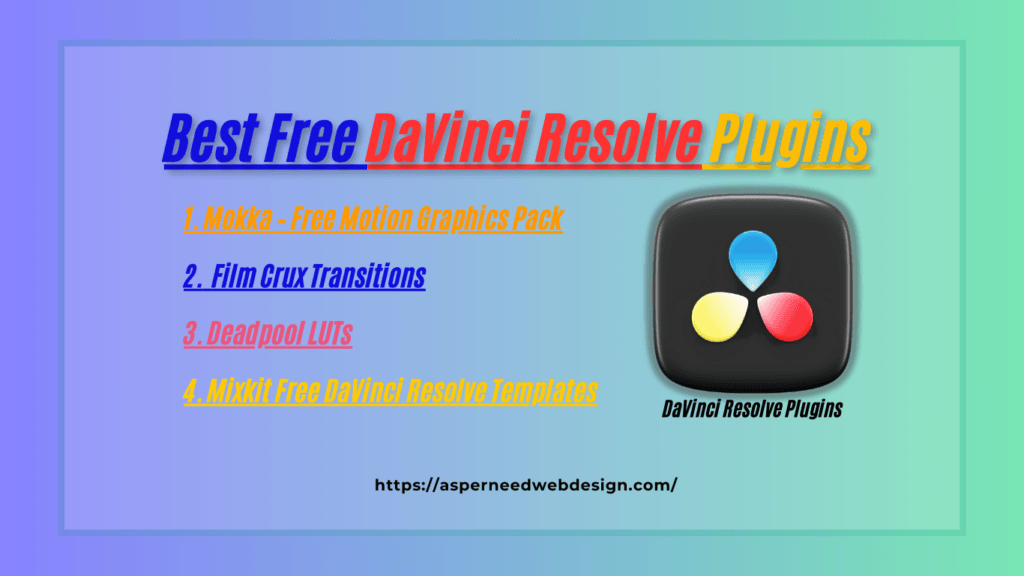
Are you using the free version of DaVinci Resolve and looking for awesome plugins to enhance your video editing? You’re in the right place! In this article, we’ll explore the best free DaVinci Resolve plugins that work perfectly with the free version. Whether you’re a beginner or a pro, these plugins will help you create stunning videos without spending a dime. Can You Use Plugins in the Free Version of DaVinci Resolve? Yes! The free version of DaVinci Resolve supports many third-party plugins and effects. However, some advanced features are exclusive to the paid Studio version. Don’t worry, the plugins I have listed here work seamlessly with the free version, giving you plenty of creative tools to enhance your videos. 1. Mokka – Free Motion Graphics Pack If you want to add eye-catching motion graphics to your videos, Mokka is a must-have! This plugin provides: It’s perfect for creating professional intros and engaging end screens without any hassle. 2. Film Crux Transitions Want to make your videos more dynamic? Film Crux offers a pack of free transitions that work flawlessly with the free version of DaVinci Resolve.These transitions include: Simply drag and drop the transitions into your timeline for quick and stunning results. 3. Deadpool LUTs Color grading can make or break your video’s mood. The Deadpool LUTs pack gives your footage a Hollywood-style color tone inspired by the Deadpool movie.This pack includes: It’s a great way to give your videos a professional touch in just a few clicks. 4. Mixkit Free DaVinci Resolve Templates Looking for ready-to-use templates? Mixkit offers a variety of free DaVinci Resolve templates, including: These templates are beginner-friendly and easy to customize, saving you time on complex editing tasks. DaVinci Resolve Free Version: Is It Good? Absolutely! The free version of DaVinci Resolve is powerful and packed with features like professional video editing, color correction, and audio post-production tools. It’s one of the best free video editing software options available today. Although some advanced features are reserved for the Studio version, the free version is more than enough for most video editing needs. Free Alternatives to DaVinci Resolve If you’re curious about other free video editing tools, here are some great alternatives: These alternatives are worth exploring if you want to experiment with different editing styles. Where to Download DaVinci Resolve Plugins for Free You can download free plugins for DaVinci Resolve from: Note- **Always make sure to download plugins from trusted sources to avoid any security issues. How to Install Plugins in DaVinci Resolve FAQs Q1: Which is the free version of DaVinci Resolve?The free version is called DaVinci Resolve (without the “Studio” label). It’s available for download on the official Blackmagic Design website. Q2: Can I Use These Plugins for Commercial Projects?Yes! These plugins are free for personal and commercial use. Just check the licensing details for each plugin. Q3: Do These Plugins Work with DaVinci Resolve 18 Free Version?Yes! All the plugins mentioned are compatible with DaVinci Resolve 18 free version. Final Thoughts These best free DaVinci Resolve plugins can truly transform your editing workflow and enhance your video quality. Whether you’re looking for motion graphics, transitions, or color-grading tools, there’s something on this list for every editor. So, what are you waiting for? Download these plugins today and take your videos to the next level! Explore more Best Free Creative Plugins for Different Needs here.
Best Free Creative Plugins to Supercharge Your Work

Are you looking for powerful tools to enhance your creative projects without breaking the bank? Free creative plugins are a game-changer! Whether you’re a designer, video editor, web developer, musician, or 3D artist, plugins can boost your workflow and creativity without costing a dime. In this article, we’ll explore the best free creative plugins across various fields, why they matter, and how to install them. Get ready to unlock new possibilities in your work! Why Use Free Creative Plugins? Many professionals and hobbyists rely on plugins to streamline their creative process. Here’s why free plugins are worth trying: Whether you’re editing videos, designing graphics, or coding websites, free plugins can make a huge difference. Types of Free Creative Plugins Different creative fields require different tools. Here are the main categories of free creative plugins: Now, let’s dive into the best free plugins in each category. Best Free Creative Plugins for Different Needs A. Graphic Design Plugins B. Video Editing Plugins C. Web Design & Development Plugins D. Music & Audio Plugins E. 3D Modeling & Animation Plugins How to Choose the Right Free Creative Plugin? With so many free plugins available, how do you pick the right one? Consider these factors: Ensure the plugin works with your software version. Not all plugins are updated regularly, so check the developer’s website or forums for compatibility details. Installing an incompatible plugin can cause crashes or errors in your software, leading to wasted time and frustration. Always verify system requirements before downloading. Read reviews and watch tutorials before installing. Some plugins have complex interfaces or require additional setup. Understanding how a plugin works before installation can save time and ensure you get the most out of it. User reviews often highlight ease of use, potential issues, and the overall experience. Avoid plugins that slow down your workflow. Some plugins consume excessive memory or CPU power, leading to laggy software performance. Before installing, check system requirements and user feedback to ensure the plugin runs smoothly on your machine without affecting your productivity. Choose plugins with active user communities for help and updates. Plugins with strong community support often have regular updates, bug fixes, and troubleshooting guides. Forums, social media groups, and developer support channels can be valuable resources for learning how to maximize a plugin’s capabilities. How to Install and Use Free Creative Plugins Most plugins are easy to install. Here’s a quick guide: FAQs 1. Are free creative plugins safe to use? Yes, as long as you download them from trusted sources like official developer websites or reputable marketplaces. Avoid third-party or unknown sites to minimize security risks. 2. Do Free plugins have limitations compared to paid versions? Some free plugins may have limited features compared to their premium counterparts, but many still offer high-quality tools that are sufficient for most users. 3. Can free plugins slow down my software? Yes, some plugins can impact performance, especially if they are poorly optimized. Check user reviews and ensure your system meets the plugin’s requirements. 4. How do I update free creative plugins? Most plugins offer updates through the software’s plugin manager or the developer’s website. Regularly check for updates to ensure compatibility and security. 5. What should I do if a plugin is not working correctly? Try reinstalling the plugin, checking compatibility, and looking for solutions in community forums. If issues persist, contact the developer for support. 6. Are free plugins available for all creative software? Not all software supports free plugins, but many popular platforms like Photoshop, Blender, WordPress, and DaVinci Resolve have extensive free plugin libraries. 7. Can I use free creative plugins for commercial projects? Most free plugins allow commercial use, but always check the licensing terms to avoid any legal issues. Conclusion Free creative plugins are a fantastic way to elevate your work without spending money. From design and video editing to web development, music production, and 3D modeling, there are powerful tools available for every creative professional. Try out the plugins mentioned in this article and discover how they can enhance your projects. Do you have a favorite free plugin? Share your recommendations in the comments below!