
Best WordPress Plugin to Clean Up Old Themes
Is your WordPress website cluttered with old themes you don’t even use anymore? You’re not alone. Many website owners forget about the unused themes sitting in their dashboard, taking up space and even causing security issues. If you’re wondering what’s the best WordPress plugin to clean up old themes, this blog has the answer – simple, clear, and right to the point. Why You Should Remove Old WordPress Themes Before jumping into the plugin, here’s why it’s important to clean up old themes: Best WordPress Plugin to Clean Up Old Themes 🔧 WP-Optimize WP-Optimize is one of the most trusted plugins to help clean and optimize your WordPress site – and yes, it helps manage old themes too. Key Features: Why It’s the Best: How to Use WP-Optimize to Clean Up Old Themes ✅ Tip: Always keep one default WordPress theme (like Twenty Twenty-Four) as a backup. Other Helpful Plugins (Optional) If WP Reset doesn’t fit your needs, here are a few other plugins that can help clean up your WordPress site: Plugin Name What It Does Advanced WordPress Reset eliminates outdated themes and plugins and quickly resets your website. WP-Optimize removes unnecessary files, optimizes your database, and compresses images. WP-Sweep Deletes unused data like revisions, spam, and orphaned metadata Media Cleaner Removes unused media files and broken entries from your media library Each of these plugins has its strengths. For theme cleanup specifically, WP Reset and Advanced WordPress Reset are the most direct options. Final Thoughts Cleaning up your old WordPress themes isn’t just about being organized – it’s about speed, safety, and peace of mind. And using the best WordPress plugin to clean up old themes, like WP-Optimize, makes the job easy even for beginners. FAQs Q. Is it safe to delete old themes? Yes, as long as they’re not your active theme or your default fallback theme. Q. Should I back up before deleting themes? Definitely, before making any changes, always make a backup of your website. Q. Will deleting old themes improve site speed? It can help reduce load time slightly, especially if themes are loading background files or causing conflicts. Q: Will deleting themes break my site? Not if you delete only inactive themes. Your active theme must remain untouched. If you unintentionally remove your active theme, WordPress will attempt to use the default theme. Q: Can I delete themes manually without a plugin? Yes. Go to Appearance → Themes → Click on the theme you want to delete → Click “Delete” in the bottom-right corner. But using a plugin is faster and safer, especially if you have many themes. Q: What’s the difference between WP Reset and WP-Optimize? The main goal of WP Reset is to reset and purify site data, plugins, and themes. WP-Optimize focuses more on performance improvement and database cleansing. They work well together. Q: How often should I clean up old themes? It depends on how often you test new themes. If you’re a developer or designer, do it monthly. For regular users, once every few months is enough.
5 Best Free Plugins for Cakewalk

Cakewalk by BandLab is one of the best free DAWs (Digital Audio Workstations) available for music producers. Whether you’re a beginner or a pro, adding high-quality plugins can take your music to the next level. The best part? You don’t need to spend a dime! In this article, we’ll explore the top free plugins for Cakewalk and how you can download them. With Cakewalk’s powerful recording, mixing, and mastering capabilities, having the right set of plugins can make all the difference. From realistic instrument sounds to professional-grade effects, these 5 best free plugins for Cakewalk can expand your creative possibilities and help you achieve studio-quality production without spending a fortune. Whether you’re crafting beats, composing orchestral pieces, or mixing electronic music, these must-have free plugins for Cakewalk will help you unlock new sonic dimensions. Why Use Free Plugins for Cakewalk? Free plugins can help you: Let’s dive into the best free plugins you can download for Cakewalk! 1. Spitfire LABS – High-Quality Instrument Sounds Type: Virtual InstrumentBest For: Orchestral, Ambient, and Cinematic SoundsDownload Link: Spitfire Audio LABS Spitfire LABS offers an incredible collection of free instrument sounds, including pianos, strings, and atmospheric pads. It’s a must-have for producers looking to add high-quality sounds to their music. 2. TAL-Reverb-4 – Amazing Free Reverb Type: Reverb EffectBest For: Adding depth and space to soundsDownload Link: TAL-Reverb-4 This simple yet powerful reverb plugin gives your tracks a professional feel. Whether you want a small room effect or a huge atmospheric vibe, TAL-Reverb-4 is a great choice. 3. Dexed – Free FM Synthesizer Type: SynthesizerBest For: Creating classic FM soundsDownload Link: Dexed Dexed is a fantastic FM synth inspired by the Yamaha DX7. It’s perfect for making retro synth sounds, basslines, and pads. 4. MT Power Drum Kit 2 – Free Drum VST Type: Drum SamplerBest For: Rock, Pop, and Electronic Drum SoundsDownload Link: MT Power Drum Kit 2 This free drum plugin delivers punchy and realistic drum sounds, making it a go-to for producers who need professional drum kits. 5. Valhalla Super Massive – Best Free Delay & Reverb Type: Reverb & DelayBest For: Adding spacey and dreamy effectsDownload Link: Valhalla Super Massive Valhalla Super Massive provides incredible reverb and delay effects that can transform your sound with lush atmospheres. How to Install Free Plugins in Cakewalk 🙋♂️ New to Cakewalk? Here’s How to Open Plugins in Cakewalk Once you’ve downloaded and installed your favorite free plugins, the next step is knowing how to use them. So, How to put plugins into Cakewalk? Follow these quick steps: 🎹 For Instrument Plugins: Your plugin window will now open—ready to use! 🎧 For Effect Plugins: 💡 Tip: If your plugin doesn’t show up, go to Edit > Preferences > File > VST Settings, check the folder path, and click Scan to refresh your plugin list. By following these simple steps, you’ll be able to open and use any plugin in Cakewalk—whether it’s one from this list or any other free VST. Final Thoughts Using these best free plugins for Cakewalk can significantly improve your music production. Whether you need high-quality instruments, effects, or synths, these plugins will give you professional sound without breaking the bank. Try them out and take your music to the next level! Read also- Best Free Creative Plugins to Supercharge Your Work
Master WordPress Templates: Build Stunning Sites Today
WordPress templates play a crucial role in designing your website. Whether you’re looking for a CSV template, fixing a messed-up theme, or designing your own WordPress template, this guide will walk you through everything step by step. 1. Where Is the CSV Template in WordPress? WordPress does not provide a built-in CSV template, but you can use plugins to import or export CSV files. Here’s how: If you’re working with a CSV template, ensure it matches the correct format to avoid errors while uploading. 2. How to Make a Website Template in WordPress? If you want to create your own WordPress website template, follow these steps: Step 1: Install WordPress Before creating a template, ensure that you have WordPress installed on your hosting server. Choose a reliable hosting provider and set up your WordPress installation through cPanel or a one-click installer. Once installed, configure the basic settings like site title, permalinks, and general options to get started smoothly. Step 2: Choose a Starter Theme or Framework Instead of building from scratch, use frameworks like Underscores (_s) or Genesis to speed up development. These frameworks provide a solid foundation with clean code and essential features, allowing you to focus on design and functionality instead of writing everything from the ground up. Choose a framework that fits your needs and enhances efficiency. Step 3: Create a New Theme Folder Go to wp-content/themes/ and create a new folder for your custom theme. Name it appropriately, keeping it relevant to your website’s purpose. This folder will contain all the necessary files that define the appearance and functionality of your WordPress template. Ensure you follow a proper directory structure to keep things organized and manageable. Step 4: Add Essential Files Create the following basic files inside your theme folder: These files work together to control the structure and design of your website. You can later add more template files, such as single.php for individual posts and page.php for static pages, to customize different sections as needed. Step 5: Customize the Template Edit these files using HTML, CSS, and PHP to create a unique design. You can also use page builders like Elementor for a visual design approach. Customizing your template involves defining layouts, setting typography, and modifying colors to match your brand identity. Test your design across different devices to ensure a responsive and user-friendly experience. Step 6: Activate Your Theme Go to Appearance > Themes, find your newly created theme, and activate it. Once activated, preview your website and check if all the elements are displaying correctly. If any issues arise, revisit your theme files to fix errors. You can also add custom widgets and plugins to extend functionality and enhance the overall performance of your website. 3. Why Are WordPress Templates Messed Up? If your WordPress templates look broken, here are some common reasons and fixes: 1. Theme Conflict Sometimes, different themes can have conflicting styles or settings, leading to a broken layout. Switch to a default WordPress theme like Twenty Twenty-Four to check if the problem persists. If your website looks normal with the default theme, the issue is likely with your previous theme, and you may need to update or replace it. 2. Plugin Conflict Plugins can sometimes interfere with your theme, causing design issues. To troubleshoot, deactivate all plugins and then reactivate them one by one while checking your website. This process helps identify the problematic plugin. Once found, you can either update it, replace it with an alternative or contact the plugin developer for a fix. 3. Cache Issues Outdated cache files can cause display issues even after making changes. Clear your browser cache and use a caching plugin like WP Fastest Cache or W3 Total Cache to refresh your WordPress site’s cached files. After clearing the cache, reload your website to check if the problem is resolved. 4. CSS or Code Errors If your theme’s styles appear broken, it may be due to incorrect CSS or PHP errors. Use an online validator to check for errors in your CSS and fix any incorrect code. You can also enable WordPress debug mode by adding define(‘WP_DEBUG’, true); to your wp-config.php file to identify PHP errors and fix them accordingly. 5. Broken Updates Sometimes, updating a theme or plugin can break your design. If this happens, try rolling back to the previous version using the WP Rollback plugin. You can also check if a new update is available that fixes the issue. Always create a backup before making updates to prevent permanent data loss. 4. How to Install a WordPress Template? Installing a WordPress template (theme) is simple: Method 1: Install from WordPress Repository Method 2: Upload a Custom Theme Method 3: Install via FTP 5. How to Design a WordPress Template? If you want full control over your WordPress template design, follow these steps: 1. Choose a Page Builder Use a drag-and-drop page builder like Elementor, Beaver Builder, or Gutenberg to design your site visually. These tools allow you to create beautiful layouts without coding. 2. Customize Your Header & Footer Modify your website’s header and footer using the Theme Customizer (Appearance > Customize). You can change the logo, menus, and layout to match your brand identity. 3. Edit Theme Files For advanced customization, edit header.php, footer.php, and style.css files. These files control your site’s structure and appearance. Make sure to back up files before making changes. 4. Use Custom CSS If you need additional styling, add custom CSS under Appearance > Customize > Additional CSS. This helps fine-tune colors, fonts, and layouts without modifying core files. 5. Add Dynamic Features Use functions.php to add custom widgets, menus, and post types. This allows you to create unique functionalities tailored to your site’s needs. Conclusion WordPress templates are the foundation of your website’s design. Whether you’re installing a theme, fixing template issues, or creating a custom template, following these steps will help you build a professional website effortlessly. Happy designing!
Best Free DaVinci Resolve Plugins
Are you using the free version of DaVinci Resolve and looking for awesome plugins to enhance your video editing? You’re in the right place! In this article, we’ll explore the best free DaVinci Resolve plugins that work perfectly with the free version. Whether you’re a beginner or a pro, these plugins will help you create stunning videos without spending a dime. Can You Use Plugins in the Free Version of DaVinci Resolve? Yes! The free version of DaVinci Resolve supports many third-party plugins and effects. However, some advanced features are exclusive to the paid Studio version. Don’t worry, the plugins I have listed here work seamlessly with the free version, giving you plenty of creative tools to enhance your videos. 1. Mokka – Free Motion Graphics Pack If you want to add eye-catching motion graphics to your videos, Mokka is a must-have! This plugin provides: It’s perfect for creating professional intros and engaging end screens without any hassle. 2. Film Crux Transitions Want to make your videos more dynamic? Film Crux offers a pack of free transitions that work flawlessly with the free version of DaVinci Resolve.These transitions include: Simply drag and drop the transitions into your timeline for quick and stunning results. 3. Deadpool LUTs Color grading can make or break your video’s mood. The Deadpool LUTs pack gives your footage a Hollywood-style color tone inspired by the Deadpool movie.This pack includes: It’s a great way to give your videos a professional touch in just a few clicks. 4. Mixkit Free DaVinci Resolve Templates Looking for ready-to-use templates? Mixkit offers a variety of free DaVinci Resolve templates, including: These templates are beginner-friendly and easy to customize, saving you time on complex editing tasks. DaVinci Resolve Free Version: Is It Good? Absolutely! The free version of DaVinci Resolve is powerful and packed with features like professional video editing, color correction, and audio post-production tools. It’s one of the best free video editing software options available today. Although some advanced features are reserved for the Studio version, the free version is more than enough for most video editing needs. Free Alternatives to DaVinci Resolve If you’re curious about other free video editing tools, here are some great alternatives: These alternatives are worth exploring if you want to experiment with different editing styles. Where to Download DaVinci Resolve Plugins for Free You can download free plugins for DaVinci Resolve from: Note- **Always make sure to download plugins from trusted sources to avoid any security issues. How to Install Plugins in DaVinci Resolve FAQs Q1: Which is the free version of DaVinci Resolve?The free version is called DaVinci Resolve (without the “Studio” label). It’s available for download on the official Blackmagic Design website. Q2: Can I Use These Plugins for Commercial Projects?Yes! These plugins are free for personal and commercial use. Just check the licensing details for each plugin. Q3: Do These Plugins Work with DaVinci Resolve 18 Free Version?Yes! All the plugins mentioned are compatible with DaVinci Resolve 18 free version. Final Thoughts These best free DaVinci Resolve plugins can truly transform your editing workflow and enhance your video quality. Whether you’re looking for motion graphics, transitions, or color-grading tools, there’s something on this list for every editor. So, what are you waiting for? Download these plugins today and take your videos to the next level! Explore more Best Free Creative Plugins for Different Needs here.
Artificial Intelligence Technology: Web Development and SEO
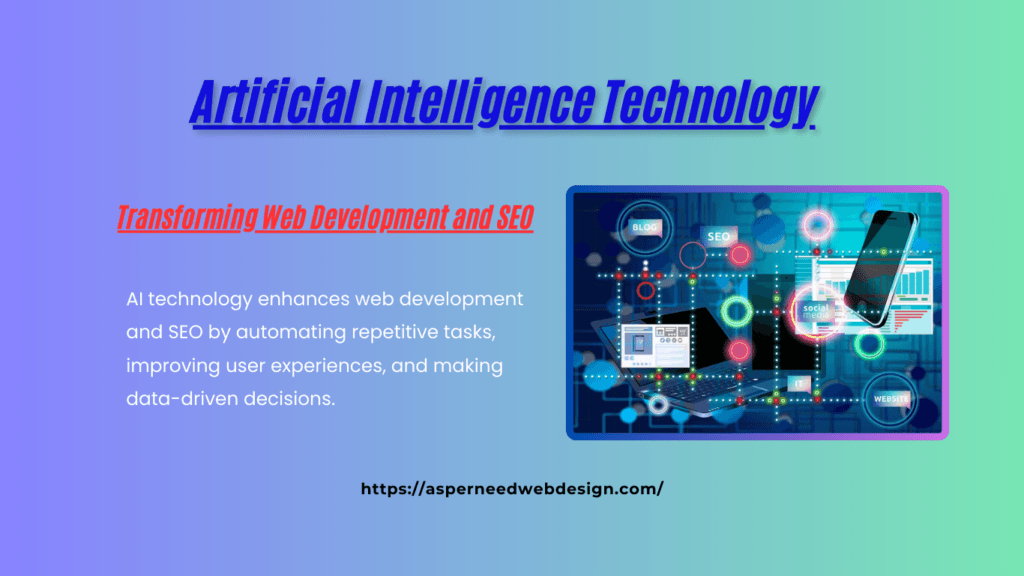
The term artificial intelligence (AI) is growing beyond its current usage. It’s reshaping how websites are built, optimized, and maintained. For those in web development and SEO, Artificial Intelligence technology is a game-changer, bringing smarter tools, enhanced user experiences, and more efficient workflows. In this article, we explore how Artificial Intelligence Technology is revolutionizing the worlds of web development and SEO. Why AI Technology Matters in Web Development and SEO AI technology enhances web development and SEO by automating repetitive tasks, improving user experiences, and making data-driven decisions. This powerful technology can identify trends, personalize user interactions, and optimize content for better visibility on search engines. AI in Web Development: The New Era of Smart Websites 1. Intelligent Website Design AI-powered design tools like Wix ADI and Bookmark AI Designer create stunning, responsive websites in minutes. By understanding user preferences, these tools suggest layouts, color schemes, and content placements for an optimized user experience. 2. Enhanced User Experience (UX) AI-driven chatbots offer 24/7 customer support, ensuring users get quick answers to their queries. Tools like Drift and ChatGPT enhance engagement, leading to higher conversion rates. 3. Automated Testing and Debugging AI tools like Testim and Applitools automatically test website functionalities across devices and browsers, ensuring seamless performance. This reduces development time and enhances website stability. AI in SEO: Smarter Optimization for Better Rankings 1. Content Creation and Optimization AI content tools like Jasper and Copy.ai help create SEO-friendly content by analyzing top-performing articles and suggesting relevant keywords. They ensure your content is both engaging and optimized for search engines. 2. Voice Search Optimization Optimizing for voice search is essential given the growing number of voice-activated devices. AI tools help identify conversational keywords and questions that users are likely to ask, making your content voice-search-friendly. 3. Advanced Keyword Research AI-powered SEO tools like SEMrush and Ahrefs use machine learning to predict keyword trends, giving you a competitive edge by targeting high-potential keywords before they become saturated. How Artificial Intelligence Technology Boosts SEO Performance 1. Predictive Analytics for Trend Forecasting AI analyzes user behavior and search patterns to predict future trends. This allows you to create content that meets user demand before your competitors do. 2. Automated Content Audits AI tools scan your website for outdated content, broken links, and SEO errors. They provide actionable insights to enhance content performance and improve overall SEO health. 3. Dynamic Content Personalization AI tailors content based on user behavior, ensuring visitors see relevant information. This personalization boosts engagement, reduces bounce rates, and improves SEO rankings. The Future of AI Technology in Web Development and SEO Artificial Intelligence Technology is constantly evolving, introducing new possibilities like automated code generation, predictive SEO strategies, and even AI-driven UX design. Staying updated with these trends will help you leverage AI to maintain a competitive edge. Conclusion: Embrace the Power of AI Technology Artificial Intelligence technology is transforming the landscape of web development and SEO. From intelligent design tools and chatbots to predictive analytics and personalized content, AI is making digital experiences smarter and more effective. By integrating AI into your web development and SEO strategies, you can enhance productivity, optimize user experiences, and stay ahead of the competition. Ready to harness the power of Artificial Intelligence Technology for your website? Start exploring AI tools today and see how they can revolutionize your web development and SEO efforts.
Best Free Creative Plugins to Supercharge Your Work
Are you looking for powerful tools to enhance your creative projects without breaking the bank? Free creative plugins are a game-changer! Whether you’re a designer, video editor, web developer, musician, or 3D artist, plugins can boost your workflow and creativity without costing a dime. In this article, we’ll explore the best free creative plugins across various fields, why they matter, and how to install them. Get ready to unlock new possibilities in your work! Why Use Free Creative Plugins? Many professionals and hobbyists rely on plugins to streamline their creative process. Here’s why free plugins are worth trying: Whether you’re editing videos, designing graphics, or coding websites, free plugins can make a huge difference. Types of Free Creative Plugins Different creative fields require different tools. Here are the main categories of free creative plugins: Now, let’s dive into the best free plugins in each category. Best Free Creative Plugins for Different Needs A. Graphic Design Plugins B. Video Editing Plugins C. Web Design & Development Plugins D. Music & Audio Plugins E. 3D Modeling & Animation Plugins How to Choose the Right Free Creative Plugin? With so many free plugins available, how do you pick the right one? Consider these factors: Ensure the plugin works with your software version. Not all plugins are updated regularly, so check the developer’s website or forums for compatibility details. Installing an incompatible plugin can cause crashes or errors in your software, leading to wasted time and frustration. Always verify system requirements before downloading. Read reviews and watch tutorials before installing. Some plugins have complex interfaces or require additional setup. Understanding how a plugin works before installation can save time and ensure you get the most out of it. User reviews often highlight ease of use, potential issues, and the overall experience. Avoid plugins that slow down your workflow. Some plugins consume excessive memory or CPU power, leading to laggy software performance. Before installing, check system requirements and user feedback to ensure the plugin runs smoothly on your machine without affecting your productivity. Choose plugins with active user communities for help and updates. Plugins with strong community support often have regular updates, bug fixes, and troubleshooting guides. Forums, social media groups, and developer support channels can be valuable resources for learning how to maximize a plugin’s capabilities. How to Install and Use Free Creative Plugins Most plugins are easy to install. Here’s a quick guide: FAQs 1. Are free creative plugins safe to use? Yes, as long as you download them from trusted sources like official developer websites or reputable marketplaces. Avoid third-party or unknown sites to minimize security risks. 2. Do Free plugins have limitations compared to paid versions? Some free plugins may have limited features compared to their premium counterparts, but many still offer high-quality tools that are sufficient for most users. 3. Can free plugins slow down my software? Yes, some plugins can impact performance, especially if they are poorly optimized. Check user reviews and ensure your system meets the plugin’s requirements. 4. How do I update free creative plugins? Most plugins offer updates through the software’s plugin manager or the developer’s website. Regularly check for updates to ensure compatibility and security. 5. What should I do if a plugin is not working correctly? Try reinstalling the plugin, checking compatibility, and looking for solutions in community forums. If issues persist, contact the developer for support. 6. Are free plugins available for all creative software? Not all software supports free plugins, but many popular platforms like Photoshop, Blender, WordPress, and DaVinci Resolve have extensive free plugin libraries. 7. Can I use free creative plugins for commercial projects? Most free plugins allow commercial use, but always check the licensing terms to avoid any legal issues. Conclusion Free creative plugins are a fantastic way to elevate your work without spending money. From design and video editing to web development, music production, and 3D modeling, there are powerful tools available for every creative professional. Try out the plugins mentioned in this article and discover how they can enhance your projects. Do you have a favorite free plugin? Share your recommendations in the comments below!
Remaker AI: Revolutionizing Website Redesigns for Seamless Digital Growth
In the fast-paced digital landscape, having a modern, well-optimized website is no longer a luxury—it’s a necessity. Businesses striving for online success need seamless, engaging, and high-performing websites to attract and retain customers. This is where AI-powered website redesigns come into play, and Remaker AI is at the forefront of this transformation. What is Remaker AI? Remaker AI is an innovative artificial intelligence tool designed to streamline website redesigns. Whether you’re a small business owner, an entrepreneur, or an enterprise looking to enhance your digital presence, Remaker AI offers smart automation, optimized layouts, and seamless user experiences that can take your website to the next level. Why AI-Powered Website Redesigns Matter Traditional website redesigns often involve extensive planning, development, and testing, making them time-consuming and expensive. With AI-driven tools like Remaker AI, website redesigns become faster, smarter, and more cost-effective. Here’s how AI is changing the game: Key Features of Remaker AI Best Free Alternatives to Remaker AI While Remaker AI is a powerful tool, there are several free alternatives that offer website redesign and AI-powered enhancements. Here are some of the best free Remaker AI alternatives: 1. Wix ADI (Artificial Design Intelligence) Wix ADI is an AI-powered website builder that customizes websites based on user preferences. It simplifies the web design process by asking users a series of questions and automatically generating a fully functional website tailored to their needs. With its intuitive drag-and-drop editor, users can easily make adjustments and add custom elements for a more personalized experience. Beyond automation, Wix ADI ensures SEO-friendly site structures, mobile responsiveness, and modern design aesthetics. Its AI-driven approach allows beginners to create professional-looking websites without any coding knowledge. By leveraging AI, Wix ADI speeds up website creation while maintaining a high level of customization and functionality for various business needs. 2. Zyro Zyro is an AI-powered website builder that offers pre-designed templates optimized for fast performance and SEO. With an easy-to-use interface, Zyro enables users to create professional websites quickly by utilizing AI-driven tools like AI Writer, AI Heatmap, and AI Business Name Generator. These features help streamline content creation, user experience optimization, and branding. Additionally, Zyro ensures that all websites are lightweight and mobile-optimized, leading to faster load times and better search rankings. The platform is ideal for small businesses and entrepreneurs who want to build an effective online presence without investing heavily in web development resources. 3. Durable AI Durable AI is a smart website builder that generates full websites in minutes using artificial intelligence. This platform is ideal for entrepreneurs and small business owners looking for a quick and efficient way to establish an online presence. With minimal input from users, Durable AI automatically creates website layouts, adds relevant images, and structures content effectively. In addition to its website-building capabilities, Durable AI provides AI-powered marketing tools, including automated content generation and SEO optimization. The system continuously adapts and improves the site’s performance based on visitor interactions, making it a valuable tool for businesses aiming for long-term online success. 4. Bookmark AiDA Bookmark AiDA (Artificial Intelligence Design Assistant) is an AI-driven website builder that crafts responsive and modern website layouts effortlessly. The platform eliminates the complexities of traditional web development by leveraging AI to generate professional websites in minutes. Users only need to provide basic information about their business, and AiDA handles the rest. Beyond design automation, AiDA also focuses on user engagement and performance optimization. Its AI-powered capabilities ensure that every site is mobile-friendly, visually appealing, and structured for maximum conversion. With Bookmark AiDA, businesses can create stunning websites with minimal effort and maximum efficiency. 5. B12.io B12 is an AI-powered platform designed to automate website creation and redesigns for small businesses. It offers a combination of AI automation and human design expertise, ensuring high-quality, customized websites. B12’s AI system generates initial designs, which are then refined by professional designers to enhance branding and usability. The platform also includes built-in SEO, content marketing, and client engagement tools, making it a comprehensive solution for businesses aiming to strengthen their online presence. B12’s ability to merge AI efficiency with human creativity sets it apart as a powerful alternative to Remaker AI. Remaker AI Face Swap – Free & Seamless AI-Powered Face Swapping Remaker AI Face Swap is a cutting-edge tool that leverages artificial intelligence to deliver seamless and high-quality face-swapping capabilities. This free AI-powered feature allows users to effortlessly swap faces in images and videos while maintaining realistic details, making it perfect for content creators, designers, and social media enthusiasts. With its advanced deep learning technology, Remaker AI ensures natural-looking results, making face-swapping fun, efficient, and accessible without requiring extensive editing skills. Is AI the Future of Website Redesign? Absolutely! AI-driven website redesigns are no longer just an option; they are becoming the industry standard. Businesses that embrace AI technology can reduce redesign costs, improve site performance, and achieve higher search rankings effortlessly. Remaker AI is an AI-powered tool that helps redesign websites quickly and efficiently. step-by-step guide on how to use Remaker AI for a website redesign Below is a step-by-step guide on how to use Remaker AI for a website redesign: Step 1: Sign Up & Log In Step 2: Input Your Existing Website URL Step 3: Select a New Design Style Step 4: Customize the Redesign Step 5: Optimize for SEO & Performance Step 6: Preview & Test the New Design Step 7: Publish the Redesigned Website Step 8: Monitor & Improve Frequently Asked Questions (FAQs) 1. What is Remaker AI used for?Remaker AI is an AI-powered tool designed to automate and enhance website redesign processes, making them faster and more efficient. 2. Are there free alternatives to Remaker AI?Yes! Some of the best free alternatives include Wix ADI, Zyro, Durable AI, Bookmark AiDA, and B12. 3. Does Remaker AI improve SEO?Yes, Remaker AI optimizes website content, metadata, and layout to align with SEO best practices, improving rankings and visibility. 4. How does AI help in website redesigns?AI automates design improvements, enhances user experience, optimizes performance,
Best AI Frameworks for Modern Web Development
The rise of Artificial Intelligence (AI) is revolutionizing web development, making websites smarter, faster, and more efficient. AI frameworks are at the forefront of this transformation, enabling developers to automate tasks, enhance user experiences, and optimize website performance. AI frameworks have transformed the landscape of modern web development. But with numerous options available, how do you determine which framework is best suited for your project’s needs? In this article, we’ll explore some of the leading AI frameworks that are redefining how developers approach web projects. Why Use AI Frameworks for Web Development? AI frameworks are powerful tools that help developers integrate machine learning (ML) and AI capabilities into websites. These frameworks provide pre-built algorithms, libraries, and tools that simplify AI implementation. Here’s why AI frameworks are crucial for web development: Now, let’s explore the top AI frameworks transforming web development. 1. TensorFlow.js TensorFlow.js is a popular JavaScript library that allows developers to run machine learning models directly in the browser. It supports real-time AI applications like image recognition, sentiment analysis, and chatbot functionalities. Key Features: 2. PyTorch Although primarily a Python-based framework, PyTorch has gained traction in web development for AI-powered applications. With TorchScript, PyTorch models can be deployed on web platforms efficiently. Key Features: 3. OpenAI GPT (Generative Pre-trained Transformer) OpenAI’s GPT models power AI-driven chatbots, content generators, and recommendation systems in modern web applications. Key Features: 4. IBM Watson IBM Watson is a leading AI framework offering various AI-powered services, including NLP, speech recognition, and AI-based analytics for web development. Key Features: 5. Google Cloud AI Google Cloud AI provides a suite of AI tools that help developers build intelligent web applications. Key Features: 6. Microsoft Azure AI Microsoft Azure AI provides cloud-based AI services that integrate easily into web applications. Key Features: 7. Hugging Face Transformers Hugging Face is a popular open-source library specializing in NLP and deep learning models. Key Features: How to Choose the Right AI Framework for Your Website? Choosing the right AI framework depends on your project requirements. Here are some factors to consider: Conclusion AI frameworks are reshaping modern web development, making websites more intelligent, interactive, and efficient. Whether you’re building an AI-powered chatbot, automating web design, or personalizing user experiences, these AI frameworks offer the tools you need to succeed. By integrating AI into your web development strategy, you can stay ahead in the digital landscape and provide users with a smarter, more dynamic experience. Are you ready to leverage AI for your web development projects? Explore these frameworks and take your website to the next level!
Janitor AI: The Future of AI-Powered Virtual Assistants (2025)

Artificial Intelligence (AI) has rapidly transformed how we interact with technology. One such innovation making waves is Janitor AI—a smart virtual assistant designed to automate and optimize various tasks. Whether you’re looking for an AI chatbot, content automation, or enhanced customer interactions, It’s offers a seamless and intuitive experience. But what exactly is it, and how can it benefit users? Let’s dive deep into this AI-powered marvel. What is Janitor AI? This is an advanced AI chatbot that enhances workflow efficiency by automating mundane tasks, managing conversations, and assisting users in various sectors, including customer support, content creation, and personal productivity. It leverages natural language processing (NLP) and machine learning (ML) to provide human-like responses, making it a reliable assistant for businesses and individuals alike. Is Janitor AI Free to Use? It offers both free and premium plans. While the free version provides basic functionalities, advanced features, API access, and enterprise-level capabilities typically require a subscription or payment. How Much Does It Cost to Use the Janitor AI API? Its pricing structure is largely influenced by the selected LLM model it operates on. Since each conversation involves an LLM query, where the AI sends user input to the language model to generate responses, costs may vary based on usage frequency and model type. Here’s a general breakdown of potential costs when using the Janitor AI API for chatbot development: Understanding your usage needs can help you choose the most cost-effective plan while utilizing its AI’s powerful capabilities. How to Install Kobold AI API for Janitor AI Step 1: Install KoboldAI Unite Download and install the KoboldAI Unite framework, which is essential for running the AI model effectively. Step 2: Configure the Pygmalion 6B Model Once installed, configure the Pygmalion 6B Model within KoboldAI to enable advanced AI capabilities. Step 3: Connect to Janitor AI Establish a secure connection between Kobold AI API and Janitor AI, ensuring seamless communication between the two platforms. How to Use? Using this AI tool is simple: Why is Janitor AI Not Working? Common Issues Is Janitor AI Safe? Yes, this is designed with security and privacy protocols to safeguard user data. It employs data encryption and compliance with industry regulations to ensure safe interactions. What Are Janitor AI’s Alternatives? If Janitor AI doesn’t meet your needs, consider the following alternatives: FAQs Q1: Can I use Janitor AI for business applications? Yes, this AI is suitable for businesses, automating customer support and workflow management. Q2: Does Janitor AI support multiple languages? Yes, it supports multilingual interactions for global accessibility. Q3: Can I integrate Janitor AI with my website? Absolutely! Janitor AI offers seamless integration with websites and applications. Q4: How frequently is Janitor AI updated? It receives regular updates to enhance functionality and security. Conclusion Janitor AI is revolutionizing how we interact with technology, offering a powerful solution for businesses and individuals looking to streamline operations. Whether for customer service, productivity, or automation, its potential is limitless. As AI continues to advance, this AI tool will play a significant role in shaping the future of digital assistance.
Responsive Web Design Principles with Examples
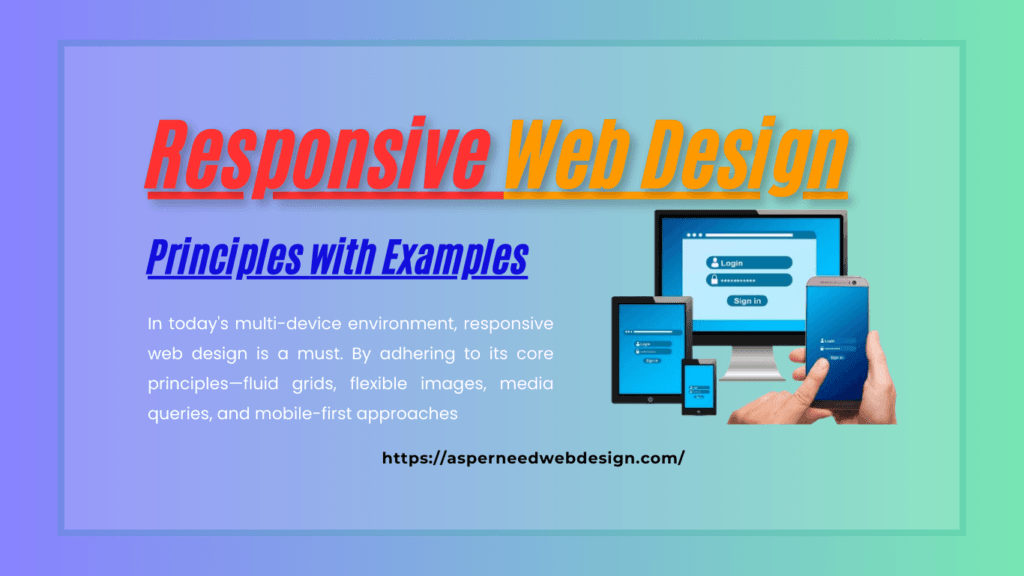
In today’s digital landscape, where users access websites from various devices, responsive web design (RWD) has become a necessity rather than an option. It ensures that websites look and function seamlessly across different screen sizes and devices, enhancing user experience and engagement. This article will delve into the principles of responsive web design and provide practical examples to guide you through implementing these concepts. What is Responsive Web Design? Responsive web design is an approach to web development where websites are crafted to adapt to the user’s device and screen size. Instead of creating multiple versions of a website for different devices, RWD uses flexible layouts, media queries, and fluid grids to provide an optimal viewing experience on desktops, tablets, and smartphones. Principles of Responsive Web Design Example:img { max-width: 100%; height: auto; Media Queries Media queries are CSS techniques used to apply different styles based on the device’s screen size and resolution. They act as breakpoints, ensuring the design adapts to various screen sizes. Example:@media (max-width: 768px) { body { font-size: 14px; } Mobile-First Design Mobile-first design prioritizes smaller screens and progressively enhances the design for larger screens. This approach ensures a seamless user experience for mobile users, who often constitute a significant portion of web traffic. Example: Start with basic styles optimized for mobile devices and add more complex styles using media queries for larger screens: body { font-size: 16px; } @media (min-width: 1024px) { body { font-size: 18px; } Typography and Readability Responsive typography ensures text is legible on all devices. Using relative units like em or rem for font sizes, line heights, and spacing allows for dynamic adjustments based on screen size. Example:body { font-size: 1rem; /* Base font size */ } @media (min-width: 1024px) { body { font-size: 1.2rem; } Examples of Responsive Web Design Benefits of Responsive Web Design Tools and Frameworks for Responsive Design Conclusion In today’s multi-device environment, responsive web design is a must. By adhering to its core principles—fluid grids, flexible images, media queries, and mobile-first approaches—you can create websites that provide exceptional user experiences. Whether you’re a beginner or an experienced developer, integrating responsive design into your projects will future-proof your websites and keep them competitive in an ever-evolving digital landscape.